
Frequently Asked Questions
Got questions? This is your go-to spot for answers. From policies to processes, our FAQs page is here to help clarify Hudson / Hawk’s systems and support your day-to-day work.
HH Handbook Attendance Policy
Reliable Attendance Policy
Reliable attendance is one of the most important parts of working at Hudson Hawk. Guests depend on us to be here when they’ve booked. Teammates depend on each other to keep the shop running smoothly. A strong attendance record shows respect for your craft, your team members, and the guests who trust us with their time.
Reliable attendance includes:
- Arriving on time and ready to work
- Communicating proactively when something unexpected comes up
- Staying for the full scheduled shift unless excused
- Following call-in procedures correctly
- Maintaining a schedule you can consistently commit to
- Being dependable to both guests and the team
Reliable attendance includes:
- Call-ins must follow the correct Call-In Policy procedures.
- Excessive lateness or leaving early without approval may be handled as attendance issues.
- Failing to communicate, no-call/no-shows, or misuse of the process may lead to immediate disciplinary action.
Barbers — Attendance Accountability (Quarterly Point System)
What Counts as an Absence
An absence occurs when a barber notifies the Shop Lead/Area Manager and the Schedule Change chat in Microsoft Teams after 5:00 PM the day before, or on the same day as their scheduled shift, that they cannot work.
Next-Day Blocking
- When a barber calls in, usually for illness related call ins, their following scheduled day will be blocked from online booking.
- Shop Leads/Area Managers will coordinate with ET to confirm the barber’s return before lifting the block.
Partial-Shift Absences
If a barber works 50% or more of a shift before going home sick or leaving early/coming in late, it does not count as an absence. These hours are considered short-notice approved time off.
Quarterly Point System (Barbers)
| Absences | Action |
| 1 | Verbal warning + no longer eligible for extra day of paid vacation |
| 2 | Written notice + no longer eligible for a raise/promotion that quarter |
| 3-5 | Blocked from online booking for 1 week – must show up each day for the daily block to be removed |
| 6 | Final written notice – further absences may result in termination |
Points Balance in Paycor (Paycor Instructions)
Paycor will give one point for every call-in day or absence. You will be able to see your Points Balance in your Paycor app. To do this:
- Login to the Paycor mobile app.
- Tap Menu.
- Tap your name under My Profile. Your profile opens.
- Scroll down to the Points Balance section to view your points.
- Tap on the Current Points section to view the details of the points balance.
Block Extensions
- To get the block removed, the barber must show up daily to have the block lifted for the day.
- If a barber calls in during a block, the block extends from the new call-in date.
- Example: Call in Monday → blocked through next Monday. Call in again Wednesday → blocked through next Wednesday.
Weather-Related Absences
- Company-determined shop closures do not count as an absence and do not negatively impact a barber’s utilization. The time missed will be deducted from utilization.
- If the shop stays open and a barber misses more than 50% of their shift, it is counted as an absence.
- To excuse weather-related call-ins, barbers may work an additional shift within two weeks.
- Caregivers may submit school closure proof for the absence to be counted as short notice ATO.
Call-In Procedures
All team members must follow Hudson Hawk’s Call-In Procedure when reporting an absence or a late arrival. Using the correct communication process ensures that guests are rescheduled quickly, shops stay staffed, and the team can adjust operations smoothly. Calling in incorrectly may delay coverage and impact how the absence is handled under the Reliable Attendance Policy.
- Call in as soon as you know you cannot work your scheduled shift.
- Late notifications (after 5:00 PM the day before or on the same day) are considered absences as outlined in the Reliable Attendance Policy.
- Texts or Teams messages alone may not be used to initiate a call-in. A phone call is required.
Barber Call-In Expectations
- Call the Shop Lead/Area Manager first or speak to them directly in the shop.
- If unavailable, post in the Schedule Change Teams chat.
- ET will block your schedule and reschedule guests.
- Follow up with your Shop Lead/Area Manager as soon as you can. Texts or Teams messages alone should not be used to initiate a call-in.
In the Paycor app, go to Menu → Time Off. When submitting, select the correct type (unpaid or vacation if you have paid vacation), choose the date(s), indicate full or partial day, and only request days you’re scheduled to work.
- New hires: List time off on new hire paperwork. No additional requests allowed until after 6 months.
- After 6 months: Requests must be submitted at least 2 weeks in advance. Requests under 2 weeks are considered short notice and make you ineligible for an extra paid vacation day.
- You can edit pending requests. If already approved, delete and resubmit with changes.
Yes, HH is closed on New Year’s Day, Memorial Day, Fourth of July, Labor Day, Thanksgiving and the day after, and Christmas and the day after.
No time off granted (shift swaps okay; seniority/performance considered):
- 3 days before Father’s Day
- 2 weeks leading up to Back to School in your market (may vary depending on market but traditionally is the second and third week of August)
- The week of Thanksgiving: All barbers work Monday-Wednesday (even if your shop is closed Monday or if it’s usually your day off); Thursday and Friday off
- The Saturday after Thanksgiving is not a black out date and can be requested off two weeks in advance
- December 17-December 31
- HH is closed early Christmas Eve, all day Christmas Day, and the day after
- Christmas Eve shop hours will be 9:00am-2:00pm with a 30 min lunch for barbers
In the Paycor app, go to Menu → Time Off. Paid vacation hours are listed here.
- Note: A negative balance under “unpaid” shows how many hours of unpaid time off you’ve requested/been approved for.
In the Paycor app, tap Create Punch and submit. Do not adjust any settings—Paycor auto-detects whether you’re punching in or out.
If you miss a punch, you can send a correction by reporting a missed punch. Click on Time Card, on the next screen select Report Missed Punch, and enter the details of your missed or incorrect punch. You do not need to send a Teams message to your supervisor. Reporting the missed punch is what directly tells your supervisor how to correct your timecard.
Using the Paycor mobile app you can search for a pay stub by date, view paystubs and
YTDs with earnings, deductions, and taxes in both visual and number format. To look up
your pay stub:
- Tap Pay & Taxes.
- Select a Recent Pay Stub or tap All Pay Stubs.
- The Pay Stub Details screen opens:
- Each section of your paystub can be expanded by tapping the down arrow or tap
Expand All to see the full details. - View a pay stub from a different time period using the arrows next to the date.
- Easily view total and individual earnings, deductions, and taxes.
- Access a PDF version of your paystub or tax document to print or share by tapping
the PDF icon in the top-right of the Pay Stub Details screen.
If you believe there is a discrepancy on your paycheck, please closely review your pay
stub and timecard, then direct message Alyssa McCoy on Teams.
In the Paycor app, go to Menu → Time Off. Paid vacation hours are listed here.
- Note: A negative balance under “unpaid” shows how many hours of unpaid time off you’ve requested/been approved for.
- Log in to the Paycor mobile app.
- Tap Pay & Taxes.
- Tap Taxes then select the Withholding Elections tab.
- In the Taxes section, tap the Federal or State withholding tax listed that you want to update
- At the top-right, tap the three (3) horizontal dots to choose to Update Withholding or Delete Withholding.
- If you tap Update Withholding, the screen updates to show your current withholding elections with editable fields.
- Make changes and save your selections. A confirmation banner appears at the top with the status of your request.
Note: You can only have one designated primary net direct deposit account.
- Log in to the Paycor mobile app.
- Tap Pay & Taxes.
- Tap the Direct Deposit tile.
- If you do not have at least one account set up to receive direct deposit, click the button in the middle of the screen to add one. If you already have at least one account set up, at the top-right tap the plus sign (+) to add additional direct deposit accounts.
- Log in to the Paycor mobile app.
- Tap Pay & Taxes.
- Tap the Direct Deposit tile.
- Complete the identity verification prompt. After successful verification, the Direct
Deposit Accounts screen appears. - Tap the direct deposit account you want to update.
- On the Personal Deposit Account screen, at the top-right, tap the 3 vertical dot icon.
- Select Edit, Deactivate, or Delete.
To request a change to your personal, contact, or work contact information, click your name at the top of the screen within the Mobile app.
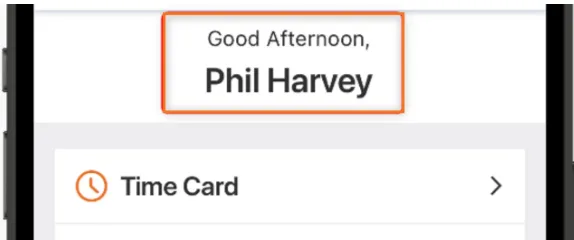
Select Edit Personal Information or Edit Contact Information, then enter the changes and select Save Changes. If your changes require approval from leaders in your organization, the changes will be updated after they have been approved. You can cancel a pending Personal, Contact, or Work Contact workflow by selecting the link within the pending message and selecting Cancel Change.
2025 W2s will be available in your Paycor app. Once completed to view:
- Open the Paycor Mobile App. The Home screen appears.
- From the home screen go to Pay & Taxes.
- Tap Taxes.
- Tap the Tax Docs tab. For past years (2024 and prior), contact Alyssa McCoy by TEAMS message or email: alyssa@hudsonhawk.com
Please send any employment verifications to Alyssa McCoy — alyssa@hudsonhawk.com
or Brad Hashagen — brad@hudsonhawk.com
Full time employees are eligible for benefits in the first month after their 60th day of fulltime employment. When an employee becomes eligible, they receive an automated email from noreply@employeenavigator.com letting them know they need to register an account.
When it’s time for you to register a new Employee Navigator account, you’ll receive an
email notice from noreply@employeenavigator.com.
- Head to the registration page
- Enter your personal details and the company identifier: HudsonHawk
- Please note Your legal name should be entered in the first and last name fields
- Create a username and password (You will need to keep this information to access
Employee Navigator in the future)
Only employees can make changes to their benefits using Employee Navigator
- After you’ve made an account, log in to review your coverage and premiums
- Add or make changes to your benefits throughout the plan year
- View your statement of benefits and plan details
For any questions regarding insurance, contact Nevont. This includes billing questions, provider and network issues, qualifying events, etc.
Nevont Benefit Advisors is available 8AM-5PM Monday-Friday to assist with any benefits related questions.
Call the office at 417-228-3565 or email service@nevont.com and let them know you’re with Hudson / Hawk Barber & Shop
UnitedHealthcare app or website is where you can find medical ID cards. The Principal website is where you can find your vision and dental ID cards. You can also ask Nevont to send you a copy if you’re having trouble creating/logging into the UnitedHealthcare app/website or Principal’s website.
Nevont Benefit Advisors is available 8AM-5PM Monday-Friday to assist with any benefitsrelated questions.
Call the office at 417-228-3565 or email service@nevont.com and let them know you’re
with Hudson / Hawk Barber & Shop.
Our new insurance plan year starts in June; therefore, Open Enrollment is typically in May each year.
To file any disability claims or for questions about disability claims or plans, contact Nevont.
Nevont Benefit Advisors is available 8am-5pm Monday-Friday to assist with any benefitsrelated questions. Call the office at 417-228-3565 or email service@nevont.com and let them know you’re with Hudson / Hawk Barber & Shop.
Contact your Area Manager/Shop Lead and Alyssa McCoy through Teams to discuss options.
HH team members receive 40% off HH non-discounted products and merchandise with
a value of $5.00 or more.
HH team members are allowed to purchase apparel and tools at discounted rates through our Apparel / Tool Form.
To help keep our SCs/ET looking sharp, non-commissionable team members are given one
free original haircut a month. Please see the handbook for further information.
Senior Barbers earn 3 days of vacation pay; Level 5 barbers earn 5 days of vacation pay. In addition, all barbers—regardless of Senior Barber status—can earn additional vacation pay based on their attendance. Barbers who miss no more than one day per quarter will earn one extra day (8 hours) of vacation per quarter. However, if a barber misses two or more days in a quarter, they will no longer be eligible for the additional vacation.
Attendance is based on your scheduled workdays. You are expected to be at work unless you have an approved time-off request that meets company guidelines.
Hudson Hawk Barber & Shop does not currently have any 401K plans.